Building an Onboarding Form Where the IT Equipment Section Only Shows Up When It's Needed
A walkthrough of a SharePoint onboarding request form: manager approval via Power Automate, a conditional IT equipment section, and a calculated start-date...
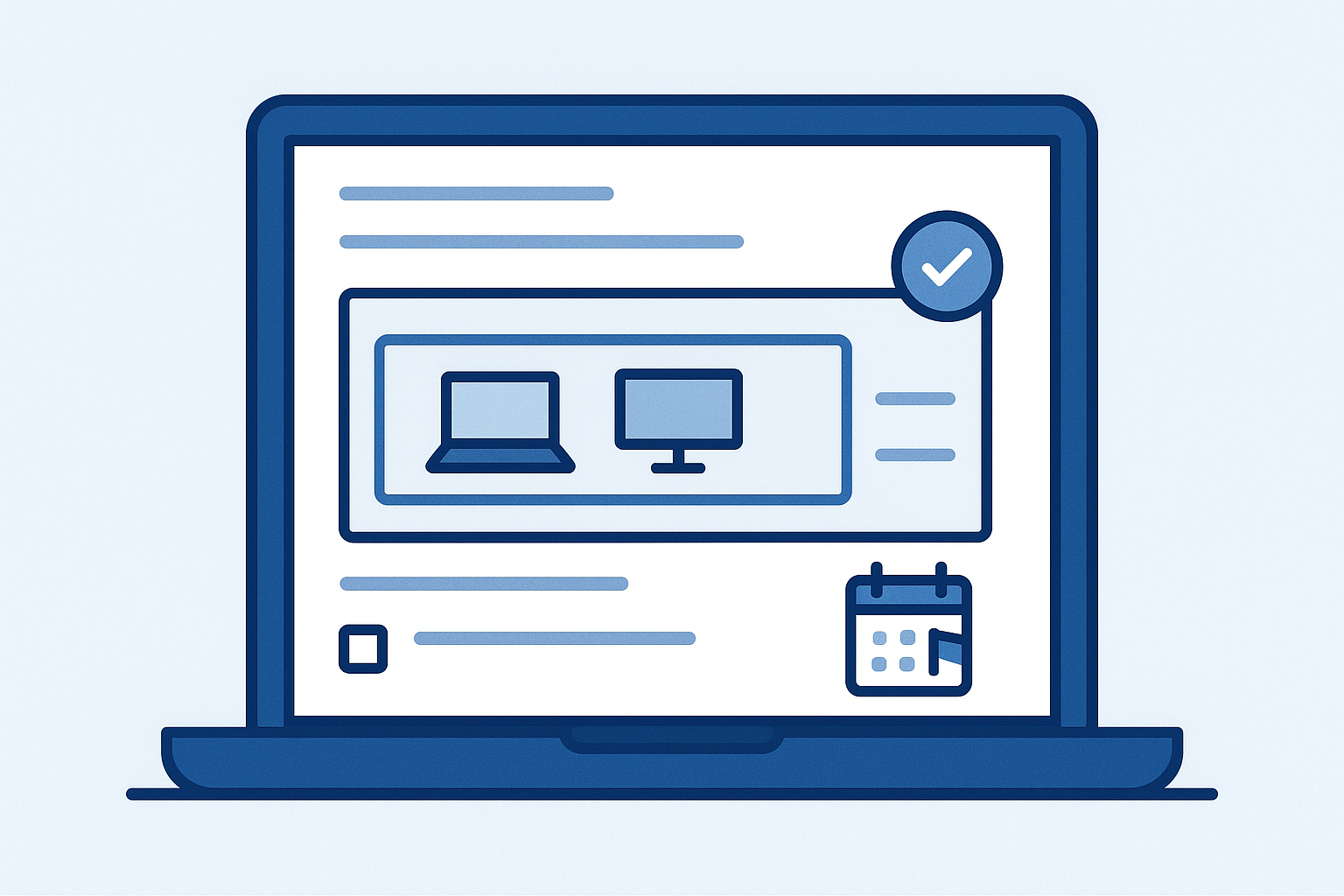
Most HR teams already have an onboarding list somewhere in SharePoint. It's got a Manager column, a Start Date column, maybe a Remote Worker yes/no field, and a default form that shows every one of those columns to every requester, whether or not it's relevant to them. Someone hiring an in-office receptionist still has to scroll past a laptop specification field they'll never touch. That's not a design choice. It's just what the out-of-the-box list form does: lay out all the columns in one flat view, with no way to show or hide anything based on an earlier answer. Microsoft does have a roadmap item for conditional questions in Lists, added in mid-2024, but it's not something you can count on shipping broadly yet. If you need conditional sections now, on a form still bound to a real SharePoint list, that's the gap a form customizer fills.
Below is how that onboarding form comes together, using a list your HR team probably already has most of.
Building the onboarding form, step by step
-
Start with the list, not the form. Set up, or confirm, the columns you need: Employee Name, Manager (a person field), Start Date, Remote Worker (yes/no), Department (choice), and a set of IT fields such as Laptop Type, Monitor Required, and Shipping Address. The form design comes later. Get the schema right first, because everything the designer does, validation included, reads off these columns.
-
Install the form customizer once, per tenant. It's a single SPFx app uploaded to the App Catalog. Once it's there, any list owner can turn a designed form on for New, Edit, or Display, no developer has to open Visual Studio each time a new department wants its own intake form. If your current onboarding process still runs on an old InfoPath form, this is also worth flagging: InfoPath Forms Services in SharePoint retires on 14 July 2026, and new or updated InfoPath forms could be blocked from publishing as early as 18 May 2026. Migrate now and you avoid doing it under deadline pressure later.
-
Lay out the base form in the designer. Group fields into sections: Requester Details, Role Details, Start Date, and IT Equipment. Use the grid to keep related fields on the same row, Employee Name next to Department, Manager next to Start Date, so the form reads like an actual intake page rather than one long column of inputs.
-
Set the IT Equipment section to hide by default. This is the bit the default SharePoint form simply can't do. Select the section, open its visibility rule, and set
visibleIftoRemoteWorker === "Yes". In-office hires never see the laptop and shipping fields at all. Remote hires get them the moment they tick yes. No JavaScript, no separate form for remote versus in-office staff. Just one rule on one section. -
Make the equipment fields required only when they're visible. A hidden field shouldn't hold up submission, but a visible one should. Set
requiredIfon Laptop Type and Shipping Address to the same condition,RemoteWorker === "Yes". Flip Remote Worker back to No after opening the equipment section and the fields vanish and stop being required in the same step. That's the real difference between a visibility rule and the validation-formula workarounds native SharePoint columns support, which can throw an error message but can't hide the field the message is attached to. -
Add a calculated start-date reminder. HR wants a nudge if a start date is coming up fast, inside a week, say. Add a calculated text or banner element with a condition using
daysBetween(Today, StartDate) <= 7, and a display value that references[Today+7]for the cutoff. Keep the wording plain: "This start date is within 7 days. Confirm IT and building access have been notified." It's a form-level nudge, not a workflow step, but it catches the requests that would otherwise slip through on a busy Monday. -
Leave the manager approval where it already works: Power Automate. The Manager field on the list is exactly what a standard "When an item is created" flow needs to key off. Build, or reuse, an approval flow triggered on item creation in this list, assigned to whatever's in the Manager person field. That's native Power Automate functionality; Forms365 doesn't replace it and doesn't need to touch it. The form's only job is to write clean, structured data, a real person field for Manager, a real yes/no for Remote Worker, so the flow has something reliable to read. Because the form still saves to the same SharePoint list, the flow keeps triggering exactly as it did before you put a nicer form on top of it.
-
Publish and test both branches. Submit once as an in-office hire and confirm the IT section never shows up and never blocks submission. Submit again as a remote hire and confirm the section appears, the fields are required, and the approval flow still fires on save. Check the display form too. HR staff reviewing a submitted request should see equipment answers only when they were actually collected, not a row of blank fields left over from a form that used to show everything to everyone.
What can go wrong
The most common mistake is putting the conditional rule on individual fields instead of the whole section. It works, technically, but now you're maintaining six separate visibleIf conditions instead of one, and it's easy to miss a field when a seventh equipment question gets added later. Group the fields into a section and set the rule once.
The second mistake is forgetting that the calculated reminder is informational only. It doesn't stop a submission and it doesn't notify anyone on its own. If you want an actual alert going to IT or facilities, that's still a job for the Power Automate flow, triggered off the same Start Date column. Treat the on-form banner as a prompt for the person filling in the form, not a substitute for the notification step.
And don't expect AI form generation to hand you this exact form in one pass. It can draft the base fields and sensible types from a description or an existing onboarding document, which saves time on the boring part. But the conditional section, the requiredIf pairing, and the calculated reminder are logic you set up deliberately once that draft exists.