Migrating an InfoPath Form to a SharePoint List Form: A Field-by-Field Checklist
A practical checklist for moving InfoPath fields, rules, and data connections onto a modern SharePoint list form before Microsoft's July 2026 cutoff.
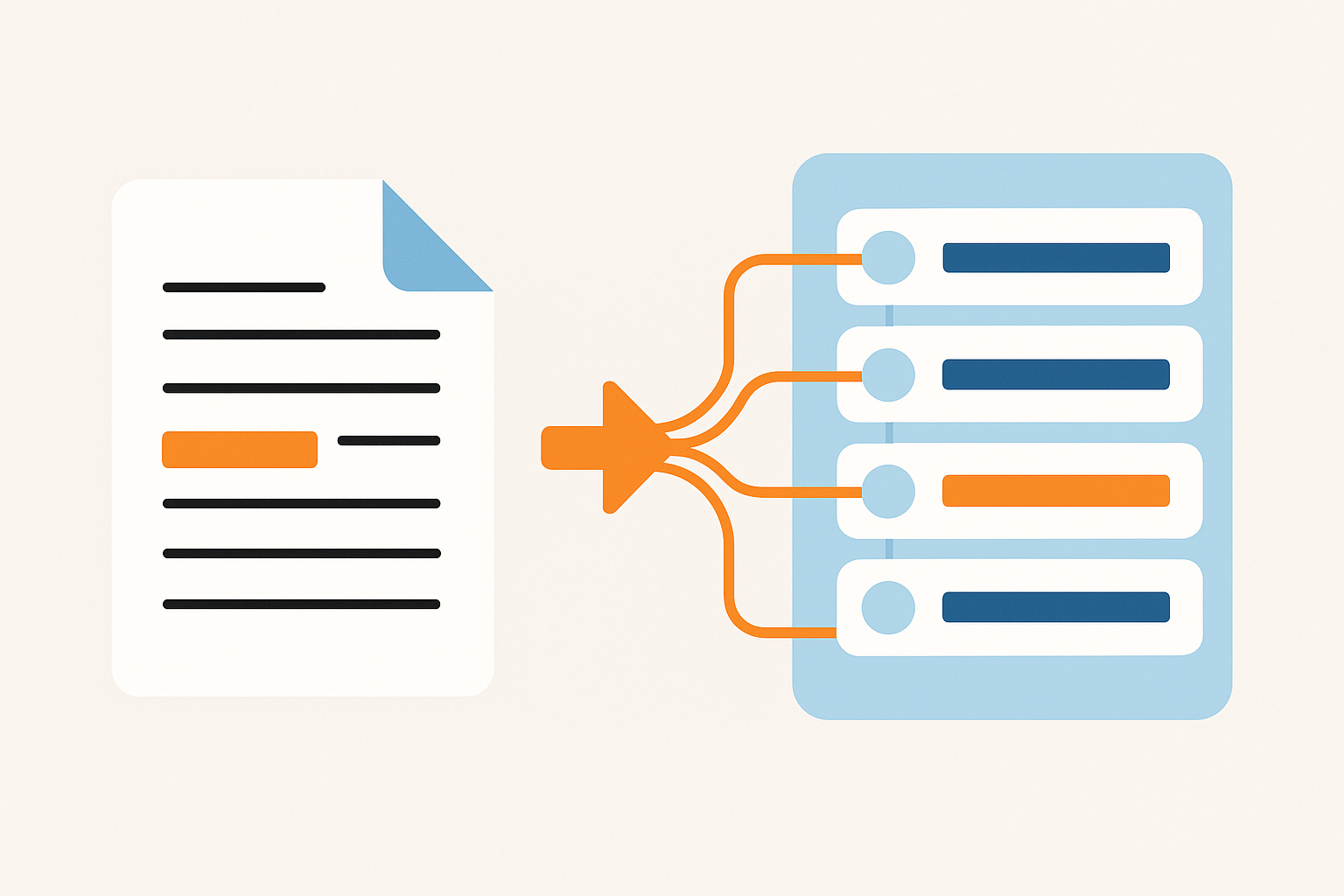
Picture a facilities request form built in InfoPath back in 2013. It has a dozen fields, a repeating table for line items, a lookup to a vendor list, and three or four rules that hide sections depending on whether the request is over $500. Nobody has touched the logic in years, but everyone in the building still uses it weekly. Now someone (probably you) has been told it needs to move off InfoPath before Microsoft switches the lights off.
That deadline is real. Microsoft has set 14 July 2026 as the date InfoPath Forms Services gets pulled from SharePoint Online. After that, you can't create or edit InfoPath forms in Microsoft 365, though existing form data stays viewable and exportable. Running SharePoint Server 2016, 2019, or Subscription Edition buys you extra time under extended support. But the direction is the same everywhere: InfoPath isn't coming back, and every form still running on it needs a plan.
Most InfoPath forms map cleanly onto a native SharePoint list with a modern list form layered on top. A full rebuild as a standalone app is rarely necessary. The work is mostly inventory: go through the form piece by piece, write down what each part does, and decide what it becomes on the other side. Skip this step and you'll spend the migration project rediscovering requirements one broken rule at a time.
Start with an inventory, not a rebuild
Before you open any form designer, list every field in the InfoPath form and its data type: single line of text, choice, date, person, number, and so on. Most of these map directly onto SharePoint column types. That's the easy 80% of the job. The harder decisions come from InfoPath structures that don't have a one-to-one SharePoint equivalent.
Repeating tables and repeating sections are the main culprit. InfoPath treats a form as a single XML document, so a repeating table of line items lives happily inside one form instance. A SharePoint list is flat: one row per list item. There's no column type that stores a variable number of rows of structured data the way InfoPath does. In practice you have two honest options. Flatten the repeating data into a fixed number of fields if the maximum count is genuinely small and predictable (three approval signatories, say), or create a second, linked list for the repeating rows and connect it back to the parent item with a lookup column. For anything resembling a real line items table, the linked list is almost always the better long-term answer, even though the person filling in the form now works across two lists instead of one screen. Decide this early. It affects how you design the rest of the form.
While you're doing the inventory, note anything InfoPath handled through views. A single InfoPath form often had a "new item" view and a separate "read-only" or "manager approval" view built from the same data. SharePoint list forms don't switch views the same way, so this usually turns into a set of visibility rules driven by status or role, rather than a separate form entirely.
Map the rules, not just the fields
InfoPath organises logic into three rule types, and each one has a fairly direct modern equivalent. That's the part of this migration that should give you some confidence.
Conditional formatting rules in InfoPath show, hide, or reformat a control based on a condition, built through the ribbon's Manage Rules pane. These map onto visibleIf and enableIf logic in a modern list form designer: show the approval section if the request amount is over 500, disable the editable fields once the status is Closed. The mental model hasn't changed. Only the interface has moved from a desktop ribbon to a web based condition builder.
Validation rules in InfoPath mark a field invalid when a condition is met and show a screen tip. These become requiredIf logic or field level validation rules in the new form: make the justification field mandatory when the amount exceeds a threshold, or flag an end date that falls before a start date.
Action rules, the third type, typically set a field's value. That's InfoPath's version of a calculated value. A total that sums line items, a due date calculated from a submission date, an approver name pulled from a manager lookup: these all become calculatedValue expressions in the new form. If your InfoPath form leaned on anything more elaborate than a simple formula, such as looping through repeating table rows to produce a running total, that logic needs rebuilding using whatever expression language or scripting API your new form tool provides. InfoPath's formula engine and a modern JavaScript based form API aren't the same thing, even when they land on a similar result.
Worth doing before you touch a designer: for every rule you find, write down its type, the condition, and the fields it touches. Migration tooling in this space typically scores a form's complexity by counting exactly this: number of fields, number of rules, number of calculations. A form with four simple show/hide rules is an afternoon's work. A form with twenty interlocking action rules and nested conditions is a project. Better to know that on day one than discover it halfway through.
Data connections are where migrations actually go wrong
Field mapping and rule mapping are mechanical once the inventory is done. Data connections are the part that catches people out, because they're an integration problem hiding inside what looks like a forms problem.
Go through every secondary data connection in the InfoPath form: connections to other SharePoint lists, document libraries, web services, or external XML sources. For each one, note the source system, whether it's read-only (populating a drop-down) or read-write (submitting data back), and how often it needs to refresh. A vendor lookup pulling from another SharePoint list is usually straightforward to rebuild as a lookup column or a filtered choice field. A connection to an external web service is a different job entirely. If that service is old enough to have been paired with an InfoPath form, there's a reasonable chance nobody currently at the organisation remembers exactly what it does.
If your repeating table needs to submit back to an external system as well as store locally, treat that as its own migration task, separate from the rest of the form. Trying to solve the layout, the rules, and the external integration in one pass is how these projects blow their timelines. Get the list structure and the on-list rules working first, prove them with real users, then tackle the external connections as a follow-up phase. It's a less satisfying way to run a project, but it's the one that actually ships before July 2026.